 Keet Support
Private Notes 📝
Add a private note to a saved contact to remember who they are, how you met, or anything else. Only you can see it.
What is a private note?
A private note is a short piece of text you attach to a contact in your Contact Book. Use it to remember details that Keet doesn't show, like how you met, where they work, or their real name.
- Only you can see your notes. The contact and everyone else in your chats can't see them.
- A note can be up to 280 characters long.
- Notes are for saved contacts. If someone isn't in your Contact Book yet, add them first.
A note isn't the same as an alias. An alias changes the name you see for a contact, while a note is free text that appears alongside it. You can use both.
How do I add or edit a note?
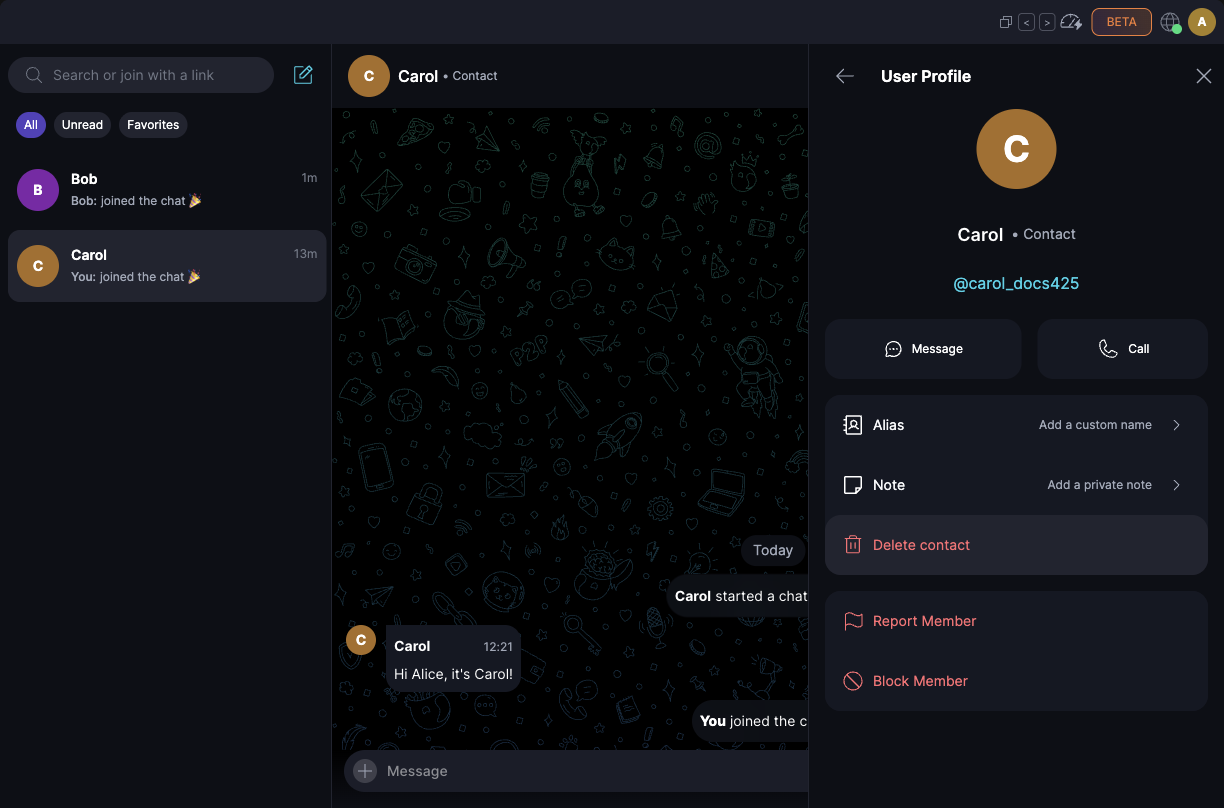
Open the contact's profile, from your Contact Book or from a group's member list. Their 'User Profile' shows an 'Alias' row and a 'Note' row. Select 'Note':
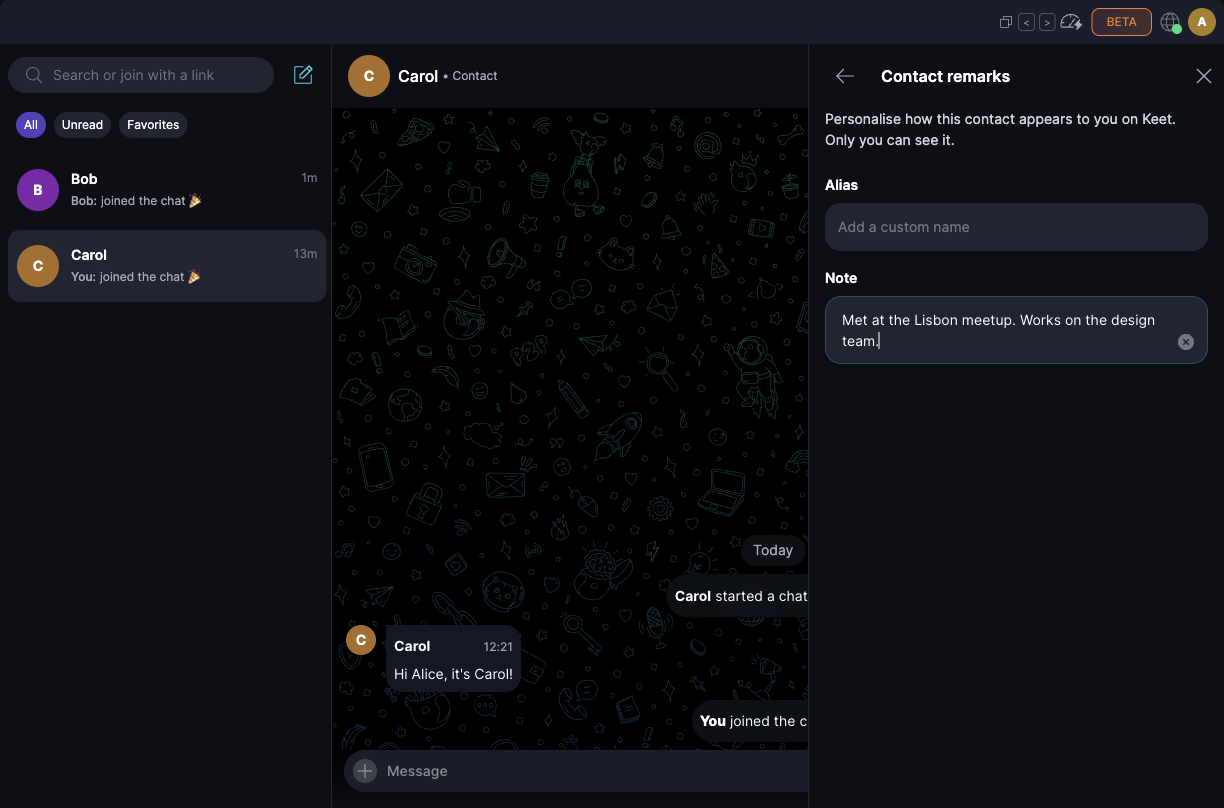
Type your note on the 'Contact remarks' page. Keet saves it when you go back or press Enter. To add a new line, press Shift + Enter.
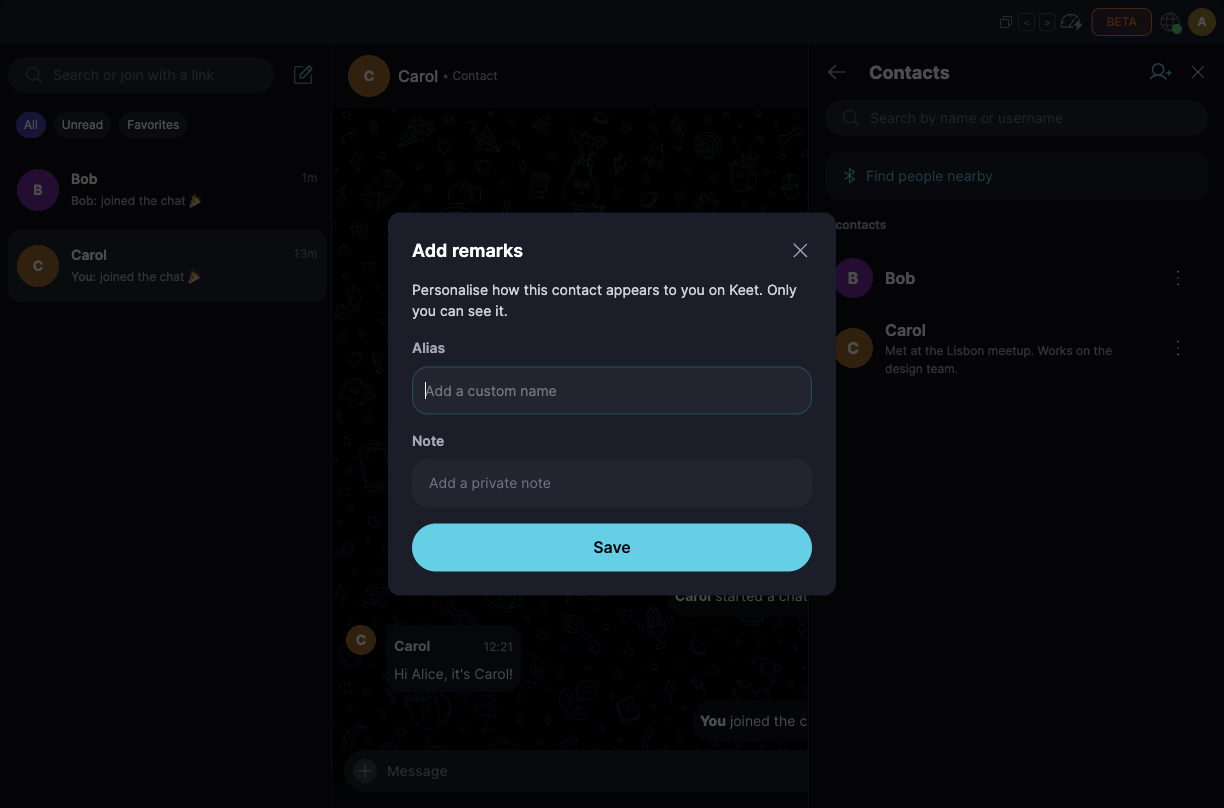
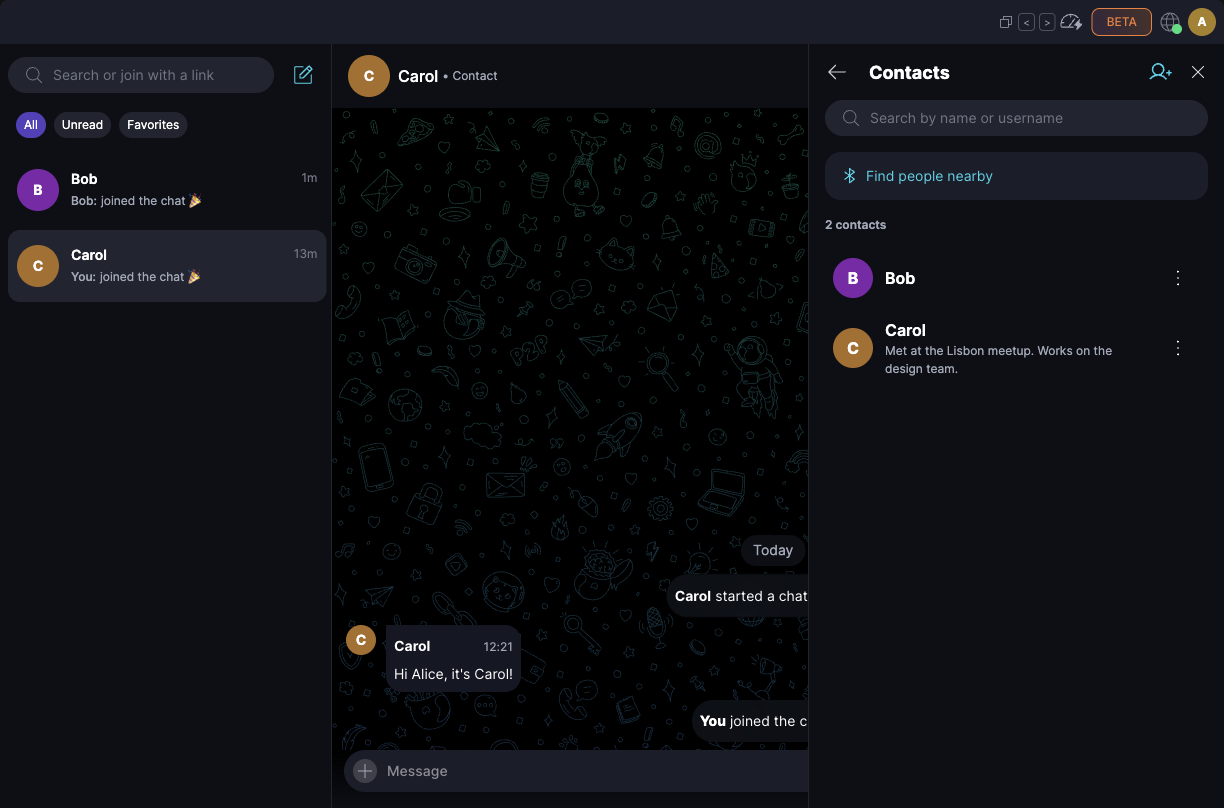
You can also add a note from the Contact Book. Go to 'Profile' / 'Contacts', open the three-dot menu next to the contact, and choose 'Add remarks'. Type in 'Note' and select 'Save':
-
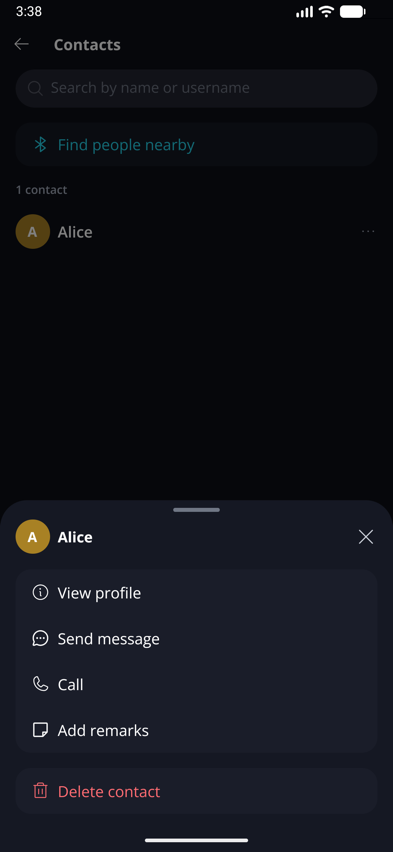
Go to 'Profile' / 'Contacts', tap the three-dot menu next to the contact, and choose 'Add remarks':
-
Enter your note in 'Note' and tap 'Save':
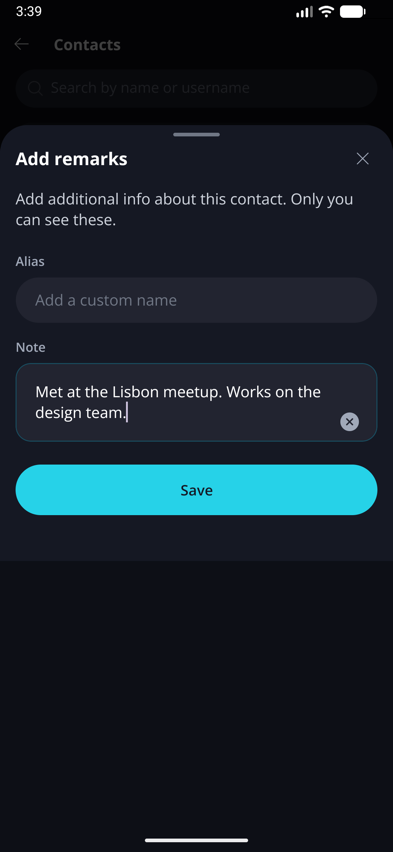
You can also open a contact's profile from a group's member list, tap the 'Note' row, and add your note on the 'Contact remarks' screen. Tap 'Save' in the top right corner.
If your note is longer than 280 characters, Keet shows a character-limit message and won't save it until you shorten it.
Where do I see my notes?
A contact's note appears in three places:
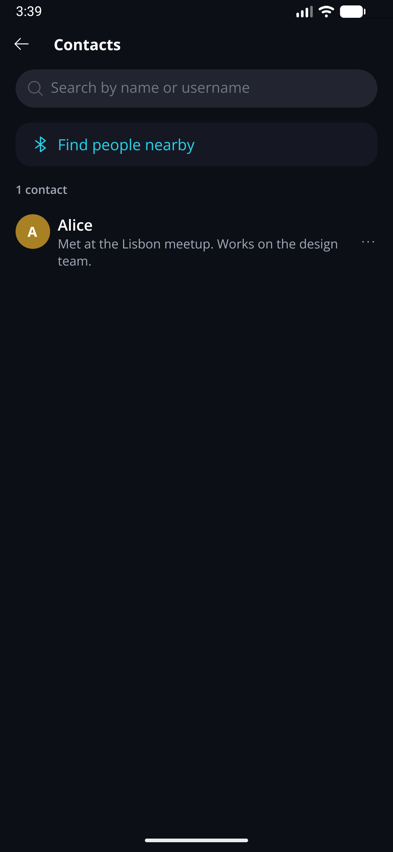
- Under their name in your Contacts list.
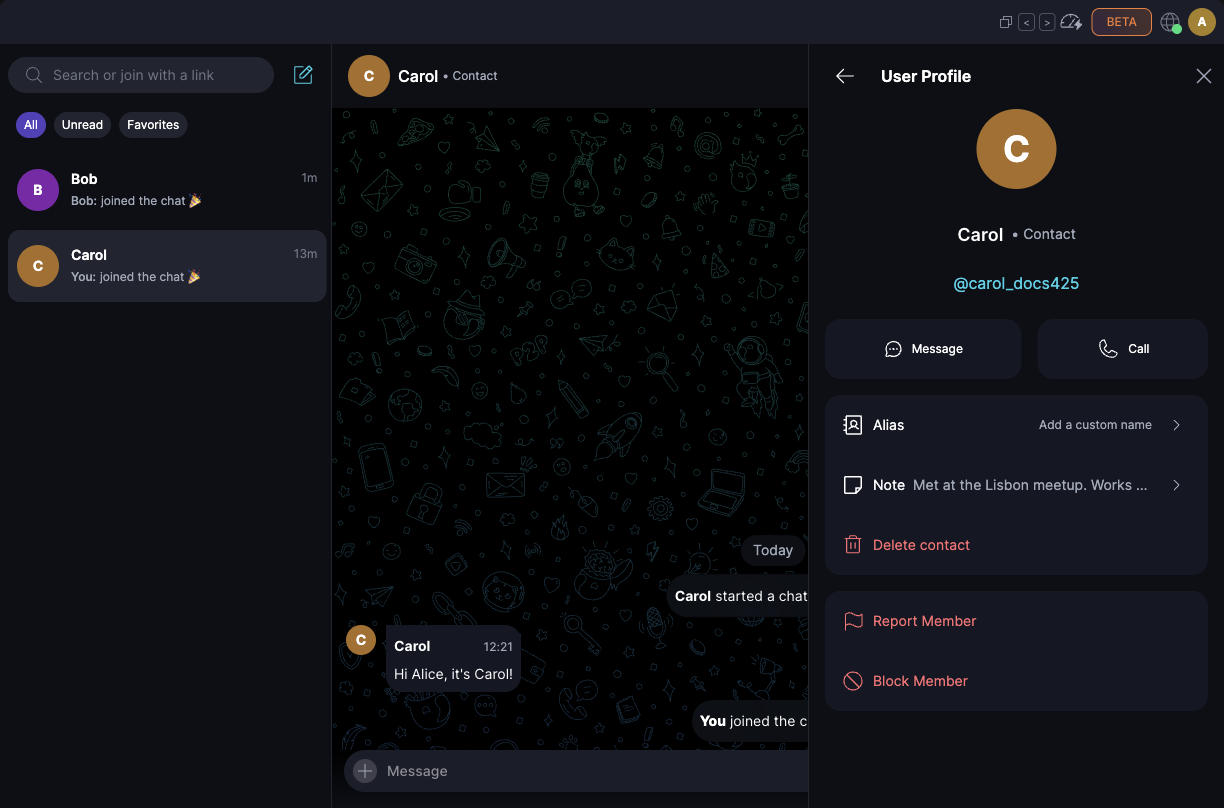
- On their profile, in the 'Note' row.
- In the contact's options on mobile, under their name.
On a profile, the 'Note' row shows the start of your note on one line. Select it to read the whole note:
How do I change or delete a note?
- To change a note, follow the same steps and edit the text.
- To delete a note, clear the 'Note' field (select the ✕ button in the field) and save.
Keet saves a note without asking you to confirm, and it doesn't show a confirmation message afterwards.
Deleting a contact also erases their alias and note. If you add the contact again later, you start with an empty note.
What stays private?
- Only you can see a note. Keet doesn't show it to the contact, and it isn't part of anything you send to other people.
- Notes aren't included when you share a contact. The card only carries the contact's public profile.
- Notes are saved with your contacts, in your private profile data, like the rest of your Contact Book.
- Blocking a contact hides their note. The 'Alias' and 'Note' options aren't available while a contact is blocked. If you unblock them later, your note is still there.
If you don't see the 'Note' field, make sure Keet is up to date.