 Keet Support
Video Calls & Share Screen 🎬
On Desktop, you can share your screen during a call using in-call controls at the bottom of the screen.
How do I share my screen on Keet?
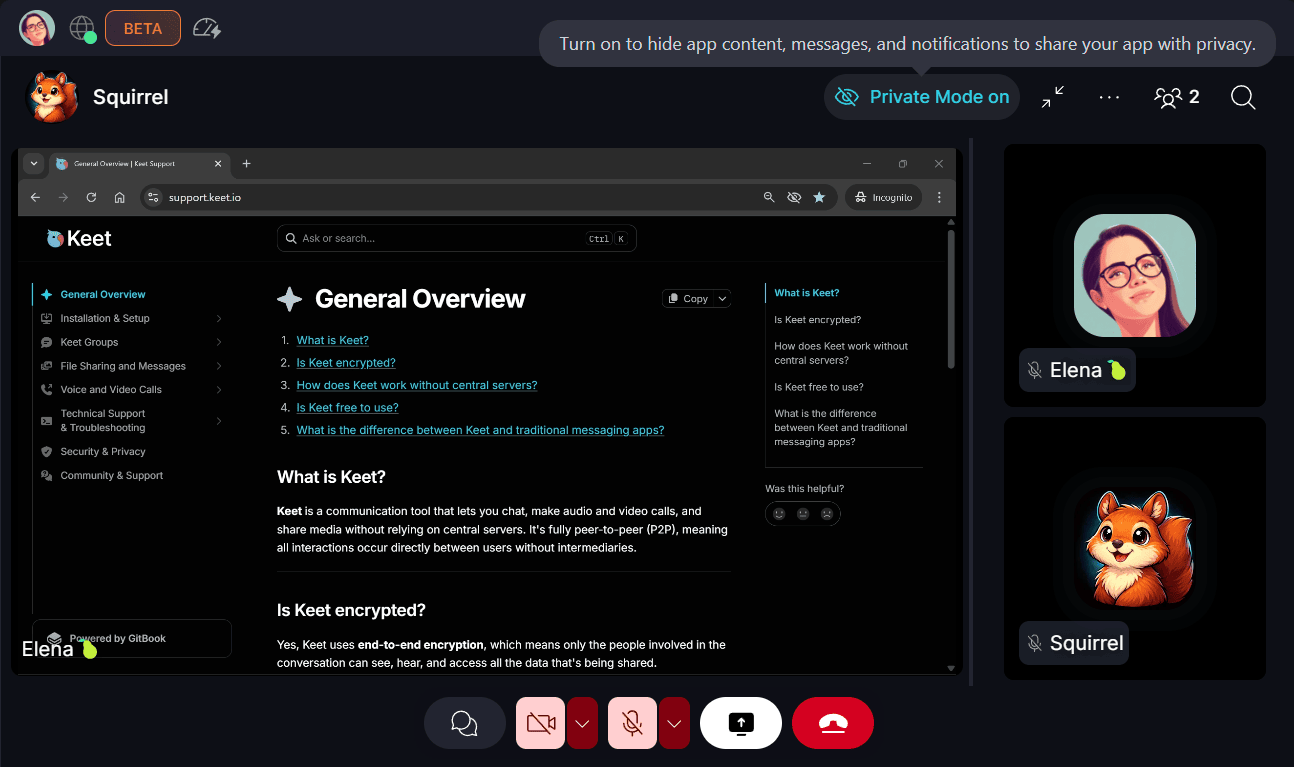
Keet supports multiple people sharing their screens at the same time, making it great for collaborative sessions like team meetings or workshops.
You can enable Private Mode before or during a call to hide the chat list and its contents for added privacy.
Before sharing your screen, make sure Keet has the necessary Screen & System Recording permissions granted in your device settings. Without these permissions, screen sharing may not work properly.
For the best performance, we recommend sharing your screen or using your camera, but not both at once (especially for the presenter). Running both can be resource-demanding for your device and may impact performance.
How many people can turn on their camera?
There's no fixed limit on how many people can have their camera on in a call. Earlier versions of Keet stopped extra people from turning on their camera once several cameras were already on. Starting with Keet 4.25, Keet no longer blocks your camera because other people already have theirs on, and desktop and mobile follow the same rules.
Instead of stopping you, Keet adjusts the call automatically to keep it running smoothly:
- Keet only plays video for the people you can see. Anyone off screen is paused until they come back into view. On mobile, the call shows you and the most active people first. If more people have joined, tap 'View all Participants' to see everyone.
- Keet lowers the video quality you send if your connection can't keep up.
- Keet turns off cameras when your device is under heavy load. See What if my device is struggling?
What if my device is struggling?
If your device is working too hard to keep up with the call, Keet protects the call instead of letting it get choppy. First it turns off your own camera, and if that isn't enough, it hides other people's videos on your screen.
When Keet turns off your camera, a message appears next to the camera button:
Your device is under heavy load
Your camera was turned off to keep the call running smoothly. You can turn it back on at any time.
If Keet had to hide other people's videos too, the message says 'Your camera was turned off, and some videos were hidden, to keep the call running smoothly.'
A video Keet hides is replaced by the person's avatar and the message 'Video is off because your device is under heavy load'. Select 'Show video' to bring that person's video back, or close the message with the ✕ button.
To reduce the load on your device, close other heavy apps, turn off your camera when you don't need it, and avoid sharing your screen and using your camera at the same time. If calls stay choppy, see Video issues.